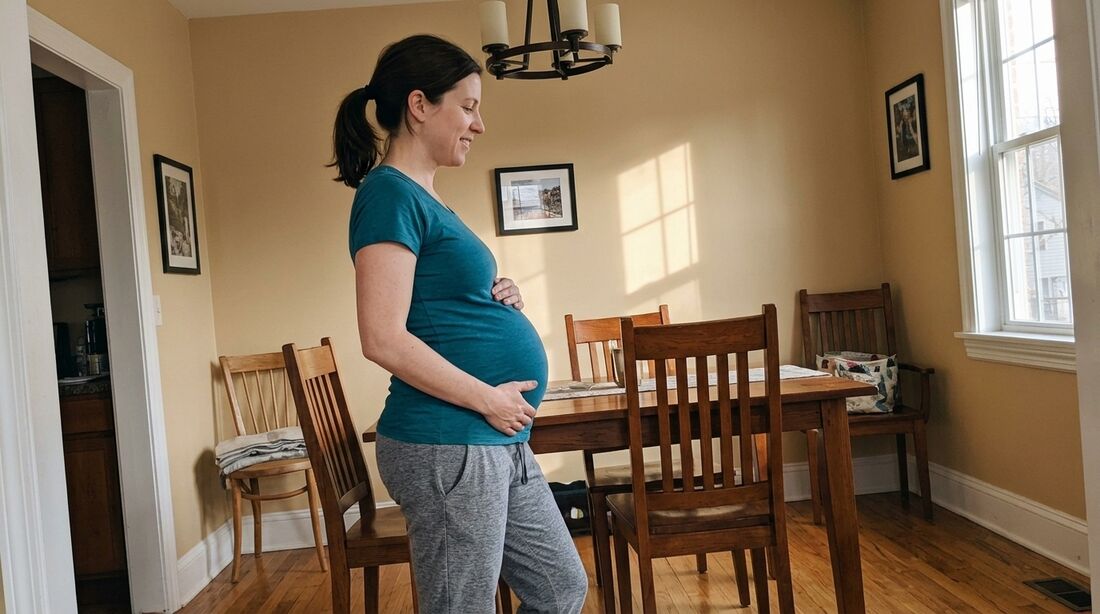
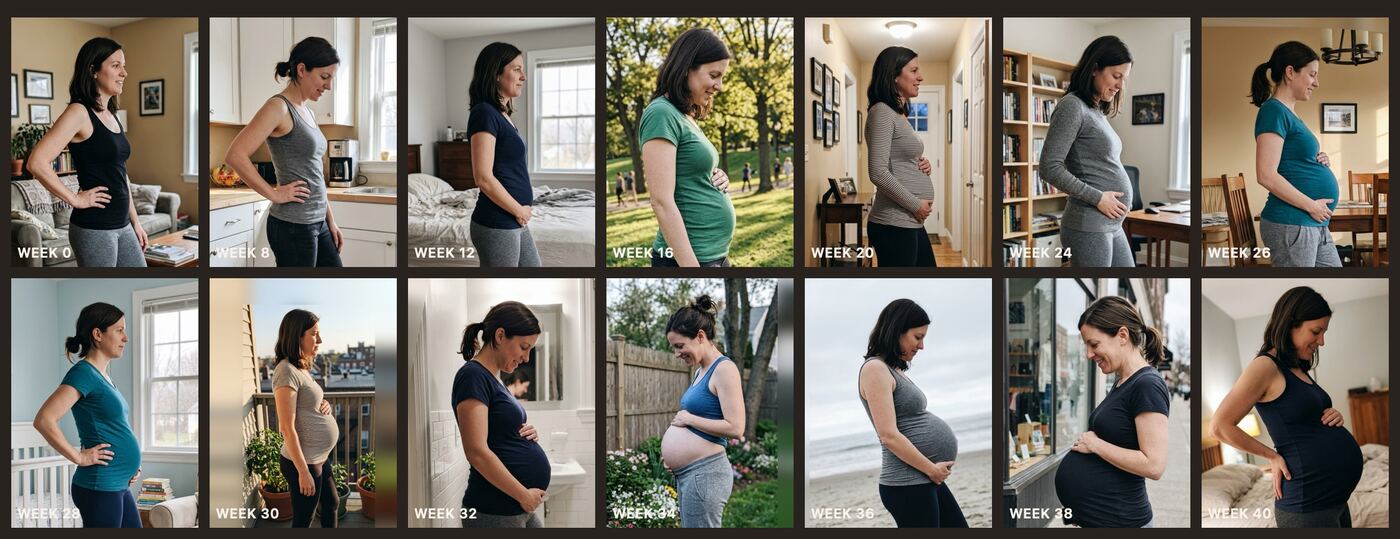
 As taken
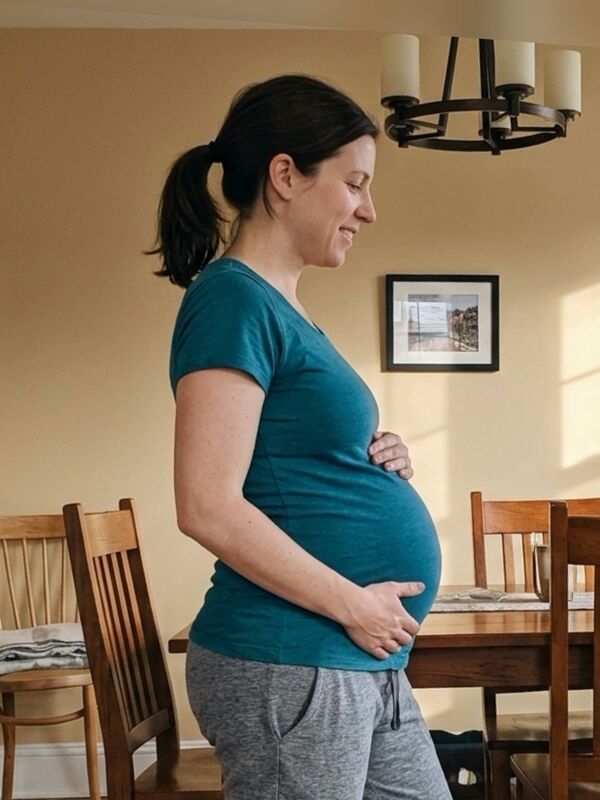 After Frame Alignment
When I wrote about why I built BumpLapse, the problem was a friend's bump timelapse that looked like a photo album on shuffle: zooming in and out, drifting around the frame, changing rooms. Missed days were one half of it. Photos that don't line up were the other, and they're by far the harder half.
The app's camera already helps with photos you take in BumpLapse: a ghost of your last photo to match, a bubble level, an alignment grid. But real life doesn't cooperate for nine months. You travel, you move the tripod, someone else takes the photo, you import pictures you took before you found the app. So we built Frame Alignment: AI that lines your photos up after the fact, and runs entirely on your iPhone.
What "not aligned" actually means
Here are 14 weeks from the test set we use to stress the feature: one pregnancy, photographed in different rooms, at different distances, some wide, some close, some crooked, and two facing the other way.
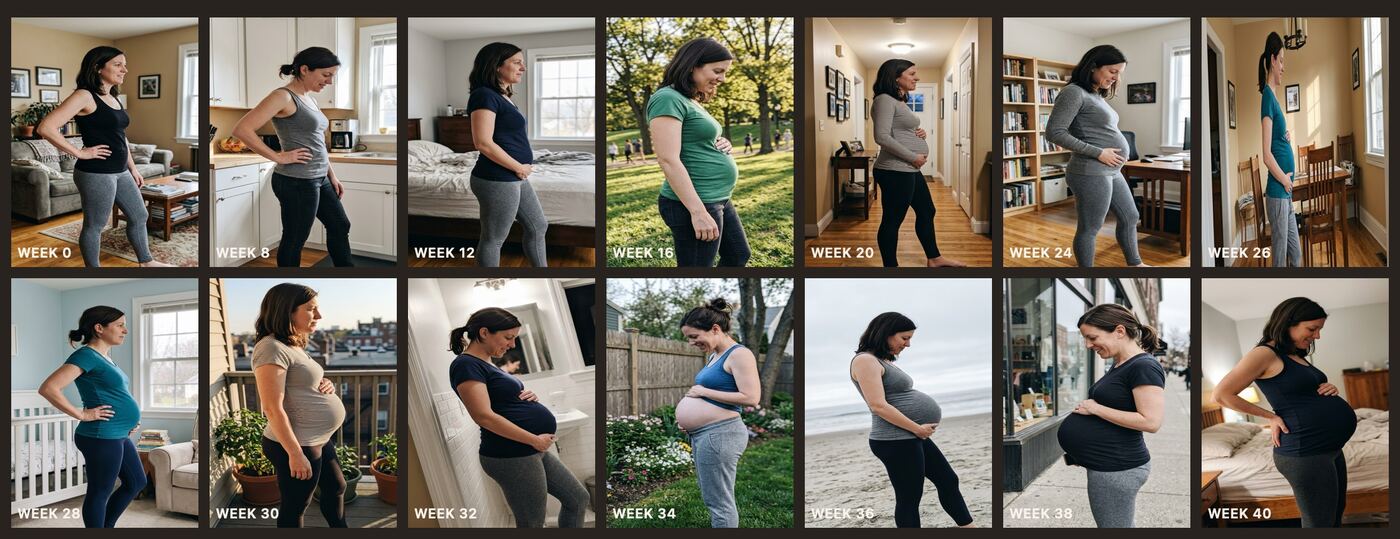
Play those back as a timelapse and the bump is the least noticeable thing in the video. Everything else is jumping.
How Frame Alignment works
Everything below uses Vision, the computer vision framework Apple builds into iOS. Its models ship with the operating system and run on the iPhone itself, so there's nothing to download and nowhere to send your photos.
1. Find her body
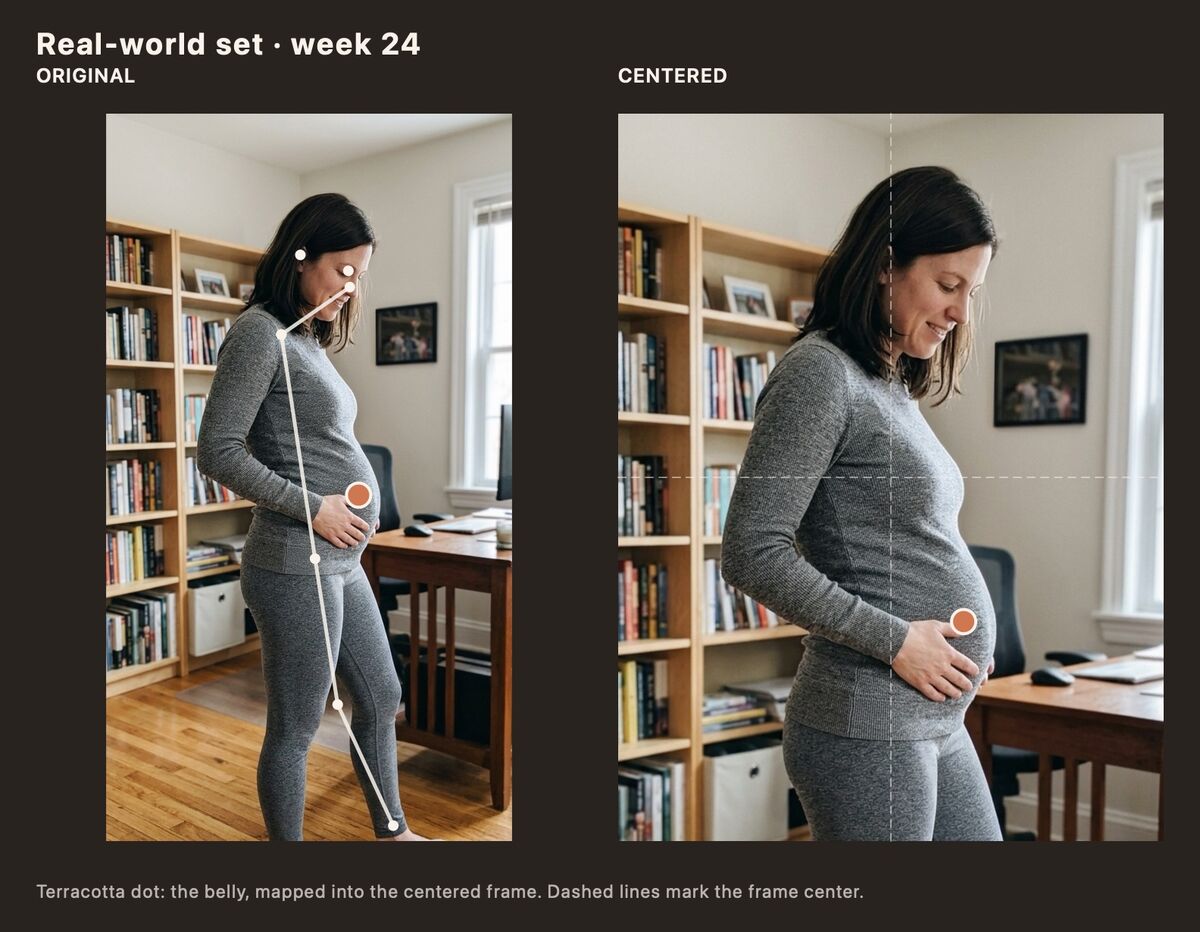
For each photo, Vision's body pose detection finds the points of the body: nose, eyes, ears, neck, shoulders, hips, knees and ankles. If someone else is in the shot, BumpLapse uses the largest person, which is almost always the one the photo is about.
The trick is choosing which points to trust. We align on the parts of the body that barely change over a pregnancy, and deliberately ignore two things: the arms, which move freely and often rest on the bump, and the belly itself. The belly is the one thing the timelapse is supposed to show changing. If we aligned on it, we'd erase the very growth you're trying to capture.
2. Find the bump
Body pose doesn't have a "belly" point, so BumpLapse finds it a different way. Vision's person segmentation outlines her against the background, and the app scans that outline between the shoulders and hips for the point that reaches furthest forward. That's the bump. It's only used to decide where to frame the shot, never to scale or line up the photos.
3. Straighten a crooked camera
A phone held a few degrees off makes the whole room tilt from week to week. To fix it, BumpLapse looks at the straight vertical lines behind her: door frames, wall corners, shelves, window edges. Her own outline is left out on purpose, because how she stands is posture, not camera tilt, and it changes as the bump grows. If enough of those lines agree, the photo is turned level. If the background has no real verticals, like a beach or a park, the photo is left alone rather than guessed at.
4. Put every week in the same place
With the body points found and the photo level, each week is scaled and shifted so her body matches a shared reference shape built from all your photos. If one point was clearly misdetected, it's dropped and the fit is redone. Then each photo slides sideways so the bump sits as close to the middle as the photo allows, smoothed across neighboring weeks so a stray detection doesn't make the video twitch.
The final frame is sized to the area most of your photos cover, so one shot taken unusually close doesn't force the whole timelapse to zoom in. The few photos that don't quite fill it get a soft, blurred edge instead of a hard black bar.
Optionally, Face the Same Way flips any photo where she faces the opposite direction from the rest, so the whole video looks one way.
See the difference
Your photos never leave your phone
This was the non-negotiable part. Bump photos are some of the most personal pictures people take, and "upload them to our server so our AI can look at them" was never going to be how this worked.
- All of the analysis runs on your iPhone, using Apple's built-in Vision framework. No photo is sent to us or to any AI service.
- There's no BumpLapse server holding your photos and no account to create.
- It works offline. Airplane mode makes no difference.
- It's quick. Each photo is analyzed once and the result is remembered on your device, so adding a new week only analyzes the new photo.
If you turn on backup, your photos are copied to your own iCloud Drive, which you control. That's the only place they ever go.
Where it still struggles
I'd rather be upfront about this. Frame Alignment makes a messy set of photos dramatically more watchable, but it can't invent framing that isn't there:
- The bump is centered as closely as each photo allows. In a tightly cropped shot it can end up a bit off the middle.
- A photo taken much closer or further than the rest may show a blurred edge where it doesn't fill the frame.
- If the bump can't be measured, say she's facing the camera or something is in front of her, that week falls back to a typical placement and can look a little off.
The best timelapse still starts with consistent photos. Frame Alignment is the safety net for the weeks that weren't. (Our guide to making a pregnancy timelapse covers how to get consistent shots in the first place.)
How to turn it on

- Open your timelapse preview in BumpLapse.
- Open AI · Smart Image Tools.
- Turn on Frame Alignment, and Face the Same Way if some photos face the other direction.
- Hold the preview to compare with your original photos.
Line up your own bump photos
BumpLapse is free on the App Store. Frame Alignment works on the photos you take in the app and the ones you import.